Tutorials
A tutorial walks new contributors through what a project asks them to do.
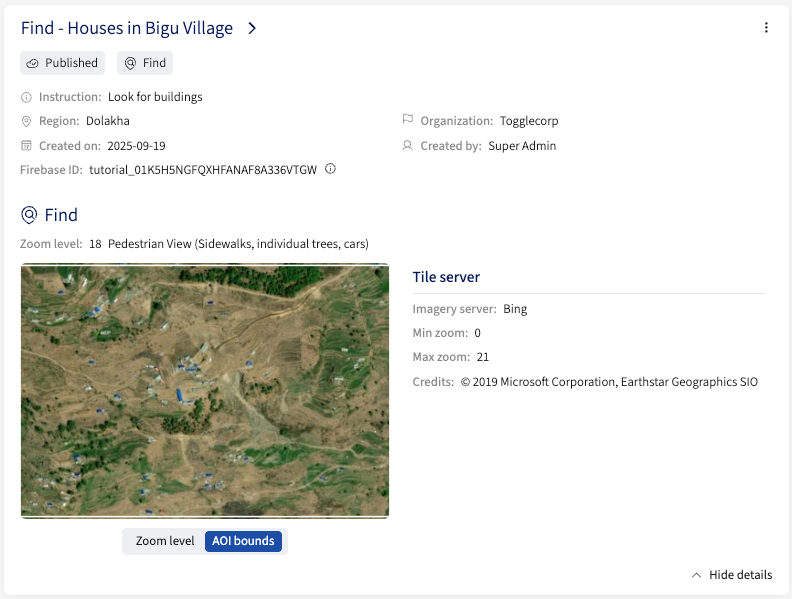
All tutorials are listed on a dedicated page. Managers can filter the list and expand each entry with the Show details button to inspect a tutorial.
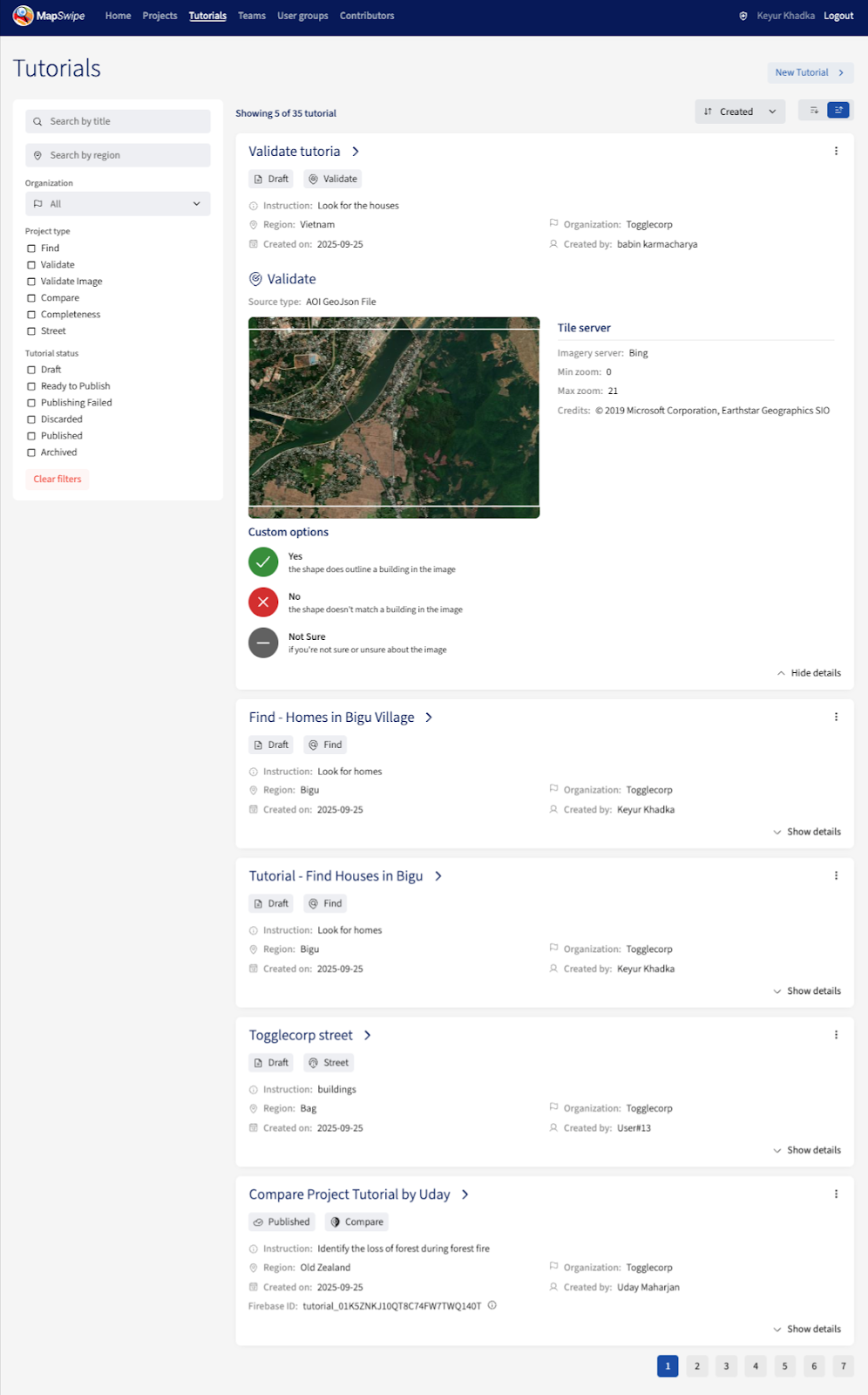
A tutorial is always tied to an existing reference project — its project type is derived from that project.
Creating a Tutorial
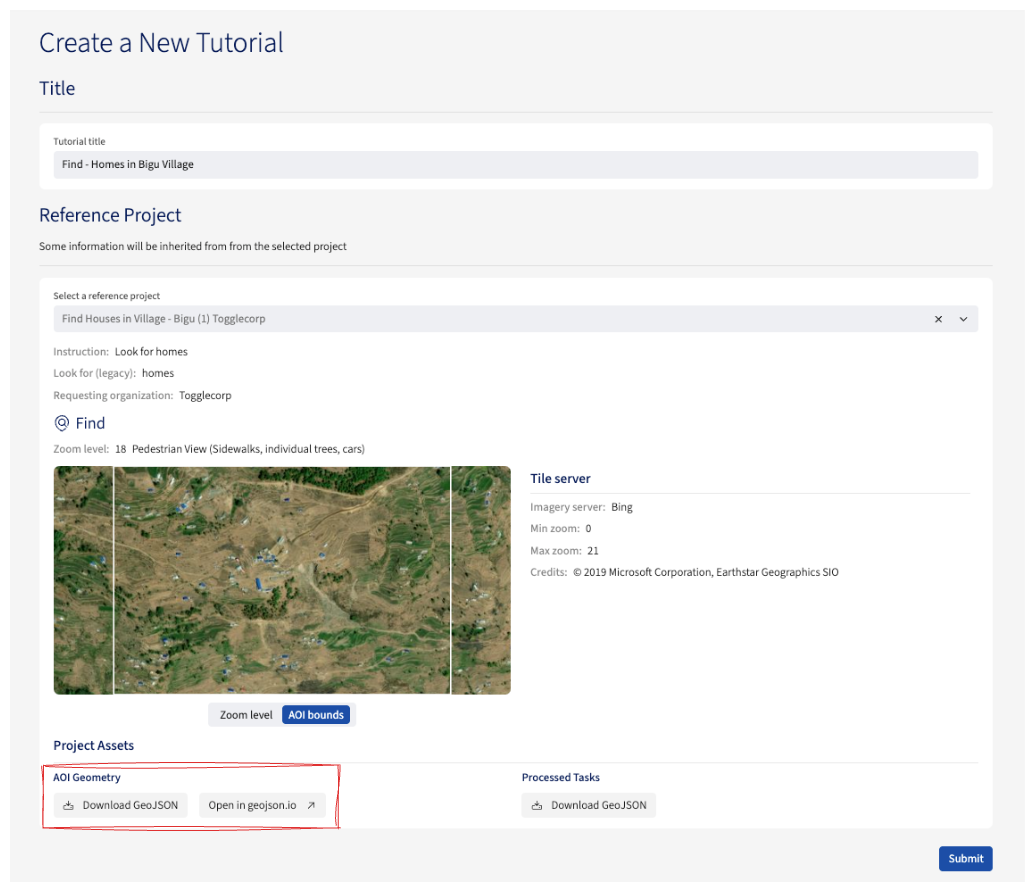
A tutorial is tied to a reference project. The tutorial inherits its project type from that project, so the reference project must already exist.
Fill in each of the sections below in turn.
General
- Set a clear tutorial title.
- Pick an existing reference project (any status).
Information Pages
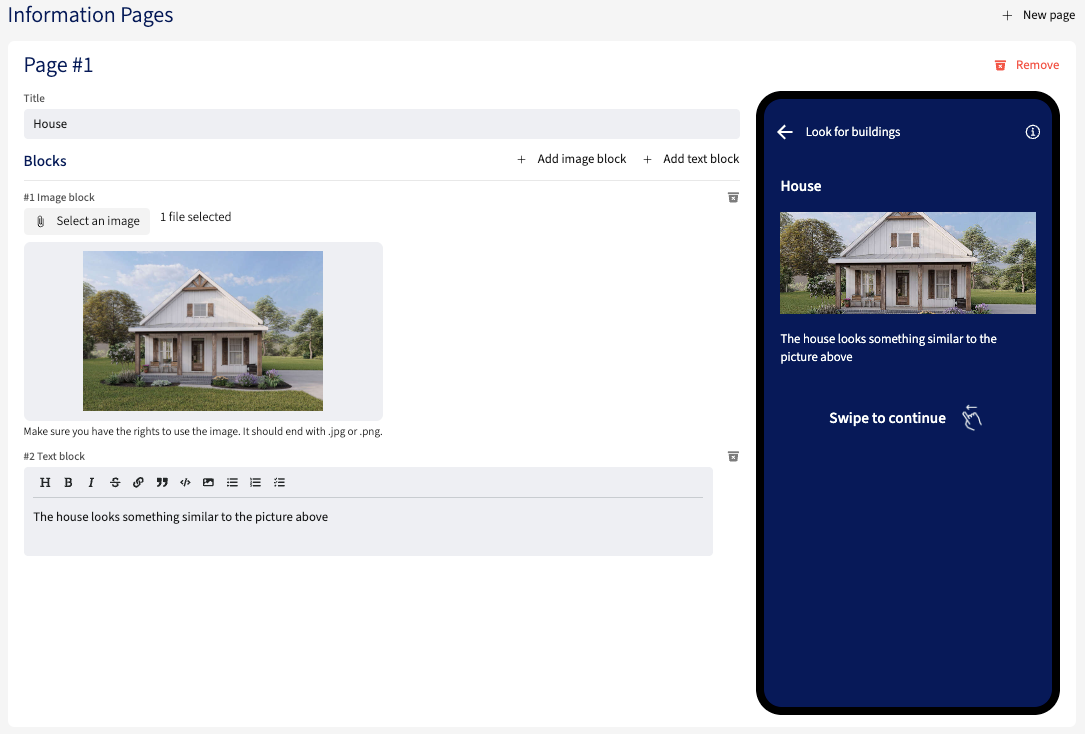
The introductory pages shown to contributors. At least one page is required; each page needs a title and one or more blocks.
Scenario Pages
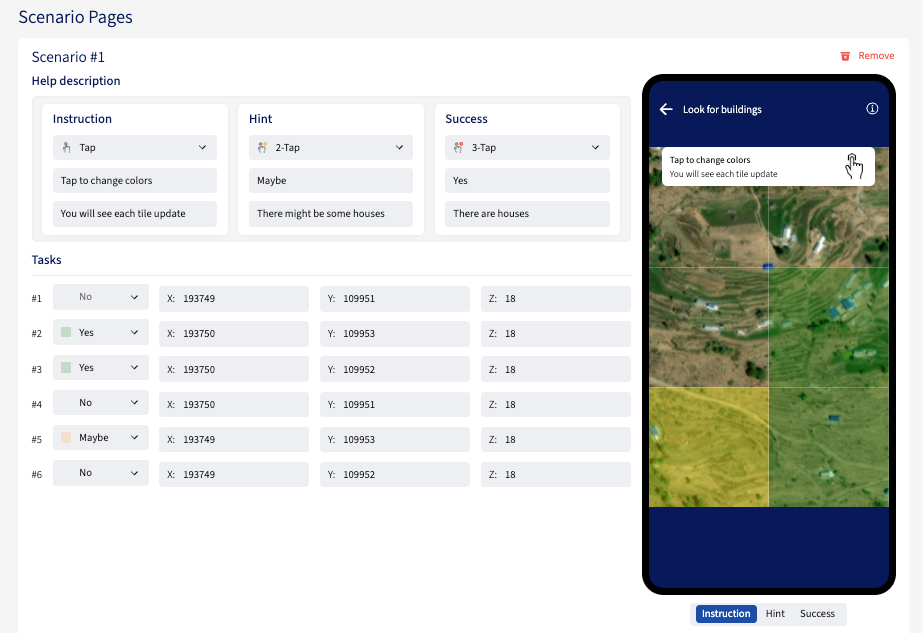
Scenario pages are populated via a JSON import. The expected format varies per project type — build the import file from the reference project’s Processed Tasks.
Once imported, one scenario is generated per entry. For each scenario, provide instruction, hint, and success content (each with an icon, a title, and a description). The reference answer for every task can be adjusted from the dashboard.
Submit
Click Submit tutorial to start publishing — the tutorial moves to Ready to Publish and is processed by a background job.
Editing a Tutorial
Project managers can edit a tutorial’s details after it has been published. The area-of-interest GeoJSON is locked once processed and cannot be changed.
Archiving a Tutorial
A tutorial can be archived when it should no longer be available for new projects. Archived tutorials cannot be selected when creating or updating a project; if the tutorial is needed again, it can be moved back to Published.
Discarding a Tutorial
Discarding retires a tutorial that has not yet reached Published. It’s available while the tutorial is still in Draft, or after a failed publish attempt (Publishing Failed). Once a tutorial is published, archive it instead.
Status flow
Every tutorial moves through one of the following statuses:
| Status | Meaning |
|---|---|
Draft | Creation has begun; details are still being filled in. |
Ready to Publish | The tutorial is queued for the background job that processes it. |
Publishing Failed | Background processing did not complete; the tutorial can be retried or discarded. |
Published | Processing finished; the tutorial is available to attach to projects. |
Archived | The tutorial is hidden from the tutorial picker on projects; can be moved back to Published. |
Discarded | The tutorial was retired before reaching Published. Terminal. |
stateDiagram-v2
    direction TB
    state "Ready to Publish" as Ready_to_Publish
    state "Publishing Failed" as Publishing_Failed

    Draft --> Ready_to_Publish : submit
    Draft --> Discarded : discard
    Ready_to_Publish --> Published : background job succeeds
    Ready_to_Publish --> Publishing_Failed : background job fails
    Publishing_Failed --> Ready_to_Publish : retry
    Publishing_Failed --> Discarded : discard
    Published --> Archived : archive
    Archived --> Published : unarchive
The two arrows out of Ready to Publish are driven by a background job rather than manager actions; every other arrow corresponds to a manager action taken from the dashboard.